
15 Zoho CRM Automations Every US Sales Team Should Build
Most US sales teams using Zoho CRM run it as a glorified contact database and never touch the automation engine. Here are 15 Zoho CRM automations — from Zia AI lead scoring and territory routing to Blueprint pipeline governance, Cadences and Deluge webhooks — that recover 54–85 hours a week for a 10-rep team.

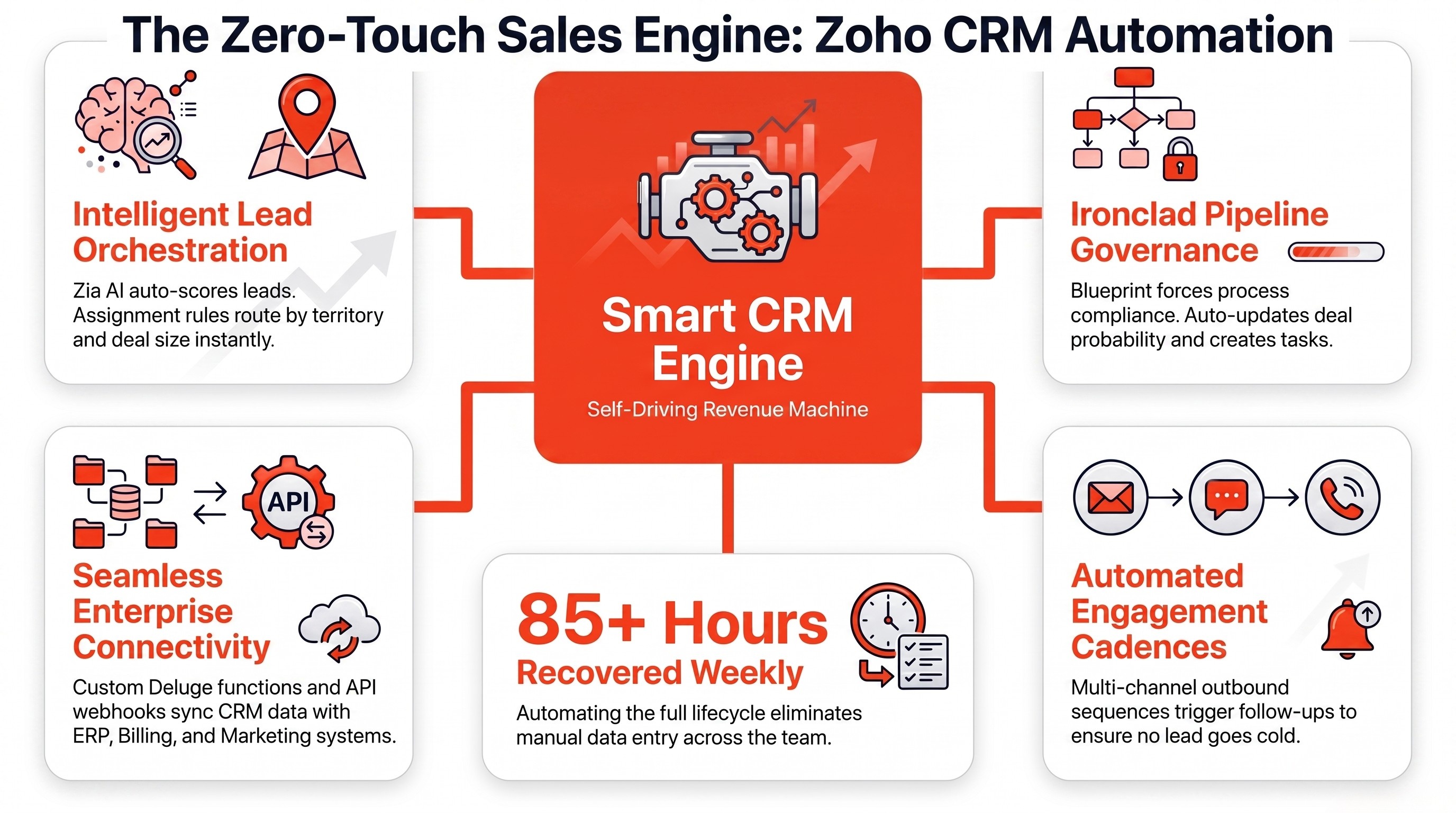
Most US sales teams using Zoho CRM are not using the platform to its full potential. They use it as a glorified contact database — logging calls, recording deals, sending the occasional email — and never touch the automation engine that makes Zoho CRM genuinely competitive with Salesforce and HubSpot.
After nine years and hundreds of Zoho implementations across the US, UK, India, Kenya and the UAE, our practice at Redian Software has seen the same pattern in every discovery call: the CRM is bought, the licenses are paid, but the CRM automation that would actually save the sales team significant time every week is never configured.
In our implementation experience, many sales teams use only a fraction of Zoho CRM's automation capabilities. This article addresses that. Below are 15 CRM automation examples every US sales team should consider building in 2026, with step-by-step configuration instructions and the Zoho CRM tier typically required for each.
Which Zoho CRM Tier Do You Need for Automations? (Pricing Reference)
Before diving into the 15 automations, you need to know which Zoho CRM tier enables each feature. Zoho CRM is sold in four paid editions — Standard, Professional, Enterprise, and Ultimate — plus a Free edition for up to 3 users.
The automation capabilities differ significantly across tiers. The table below shows the approximate pricing from Zoho's official pricing page and the general automation capabilities per tier. Feature availability changes frequently and should be verified directly on Zoho's official pricing page before purchasing.
Table 1. Zoho CRM Pricing Tiers and Automation Capabilities (2026)
| Tier | Price (USD/user/month, annual) | Workflow Rules | Blueprint | Assignment Rules | Zia AI | Custom Functions (Deluge) |
|---|---|---|---|---|---|---|
| Free | $0 (up to 3 users) | Verify current feature availability | No | No | No | No |
| Standard | $14 | Yes (basic) | No | Yes | Basic AI features (verify on pricing page) | No |
| Professional | $23 | Yes (full) | Yes | Yes | Basic AI features (verify on pricing page) | Yes (limited calls) |
| Enterprise | $40 | Yes (full) | Yes | Yes | Advanced Zia capabilities | Yes (full) |
| Ultimate | $52 | Yes (full) | Yes | Yes | Advanced + predictive AI | Yes (full + advanced) |
Source: zoho.com/crm/zohocrm-pricing.html. Feature availability per tier — including AI capabilities, Cadences and workflow automation — changes frequently and should be verified directly on Zoho's official pricing page before purchasing.
The 15 Zoho CRM Automations — Quick Summary Table
This summary table gives you the full list at a glance. Each automation is then explained in detail below with step-by-step configuration instructions. The tier column shows the minimum Zoho CRM edition required.
Table 2. 15 Zoho CRM Automations Every US Sales Team Should Build
| # | Automation | Feature Used | Min. Tier | Time Saved / Week |
|---|---|---|---|---|
| 1 | Auto-score leads with Zia AI | Zia Lead Scoring | Enterprise ($40) | 5–8 hours |
| 2 | Auto-assign leads by territory | Assignment Rules | Standard ($14) | 3–5 hours |
| 3 | Auto-assign leads by deal size | Assignment Rules | Standard ($14) | 2–3 hours |
| 4 | Auto-duplicate lead detection | Duplicate Check | Standard ($14) | 2–4 hours |
| 5 | Send automated follow-up emails | Workflow + Email Alerts | Standard ($14) | 4–6 hours |
| 6 | Auto-create tasks on stage change | Workflow Rules | Standard ($14) | 3–4 hours |
| 7 | Blueprint your sales pipeline stages | Blueprint | Professional ($23) and above | 6–8 hours |
| 8 | Auto-update deal probability by stage | Workflow + Field Update | Standard ($14) | 1–2 hours |
| 9 | Notify reps when deals stall | Workflow + Notifications | Standard ($14) | 3–5 hours |
| 10 | Auto-close won deals and trigger onboarding | Workflow + Webhooks | Professional ($23) | 4–6 hours |
| 11 | Build sales cadences for outbound | Cadences | Standard ($14) | 6–10 hours |
| 12 | Auto-route support tickets from CRM | Workflow + Zoho Desk sync | Enterprise ($40) | 3–5 hours |
| 13 | Custom Deluge functions for advanced logic | Custom Functions | Professional ($23) | 5–8 hours |
| 14 | Auto-generate quotes and proposals | Workflow + Zoho Writer | Professional ($23) | 4–6 hours |
| 15 | Trigger webhooks to external systems | Webhooks + REST API | Professional ($23) | 3–5 hours |
Time saved per week is estimated based on observed client engagements and may vary substantially by team size, process maturity, and adoption. Feature-to-tier mappings should be verified on Zoho's official pricing page.
Lead Management Automations (#1–#4)
Automation #1: How Do I Auto-Score Leads with Zia AI?
Zoho CRM lead scoring automation uses the Zia AI assistant to analyse historical win/loss data and assign predictive scores to help prioritize leads. This automation often reduces manual qualification effort for sales teams.
- Requirement: Zoho CRM Enterprise ($40/user/month) or higher for advanced Zia capabilities.
- Setup: Go to Setup > Automation > Scoring Rules > Zia-Powered Scoring > Enable.
- Configure: Select the deal-win history Zia should learn from. Predictive scoring performs best when sufficient historical sales data exists; Zoho recommends verifying the current data threshold requirements on their official documentation.
- Threshold: Set the auto-assignment thresholds (e.g., 80+ to senior reps, 50–79 to standard queue).
- Test: Run Zia in 'suggestion mode' for 14 days before switching to 'auto-score mode' to validate accuracy.
Automation #2: How Do I Auto-Assign Leads by Territory?
Zoho CRM assignment rules let you automatically route incoming leads to the right sales rep based on state, zip code, country, or custom territory field. For US sales teams covering multiple regions, this eliminates the daily manual lead-distribution bottleneck and helps ensure leads are routed immediately once assignment rules are triggered.
- Requirement: Zoho CRM Standard ($14/user/month) or higher.
- Setup: Go to Setup > Automation > Assignment Rules > Create Rule > Leads module.
- Criteria: Add conditions (e.g., State = California → assign to West Coast rep; State = New York → assign to East Coast rep).
- Round-robin: Enable round-robin assignment if multiple reps cover the same territory.
- Fallback: Set a default rep for leads that do not match any territory rule.
Automation #3: How Do I Auto-Assign Leads by Deal Size?
For sales teams with split AE/SDR coverage, assignment rules can route leads based on estimated deal size. Leads with a budget field above $50,000 go directly to an Account Executive; leads below $50,000 go to an SDR for qualification first. This ensures senior reps focus only on deals that justify their time.
- Setup: Same Assignment Rules interface as Automation #2.
- Criteria: Estimated Budget >= $50,000 → assign to AE; < $50,000 → assign to SDR.
- Notification: Enable email alert to the assigned rep for prompt follow-up.
Automation #4: How Do I Auto-Detect Duplicate Leads?
Duplicate leads are the silent killer of CRM data quality. Zoho CRM's duplicate-check automation runs on every new lead creation and flags potential duplicates based on email, phone, or company name — preventing two reps from working the same prospect unknowingly.
- Setup: Go to Setup > Data Administration > Duplicate Check > Configure.
- Match fields: Select Email (exact match) and Company (fuzzy match).
- Action: On duplicate found, flag duplicates for review or merge according to your data governance policy.
Pipeline and Deal Management Automations (#5–#10)
Automation #5: How Do I Send Automated Follow-Up Emails?
Zoho CRM email automation triggers a pre-written follow-up email the moment a lead reaches a specific stage. For example, when a lead moves to 'Contacted,' Zoho CRM automatically sends a follow-up email 48 hours later if the rep has not logged a second touch. This ensures no lead goes cold due to rep inattention.
- Requirement: Zoho CRM Standard ($14/user/month) or higher.
- Setup: Go to Setup > Automation > Workflow Rules > Create Rule > Leads module.
- Trigger: When Lead Status = Contacted and Last Contacted Date is 2 days ago.
- Action: Send Email Alert using a pre-approved email template.
- Tip: Create 3–5 email templates for different follow-up scenarios (no response, pricing question, demo follow-up).
Automation #6: How Do I Auto-Create Tasks on Stage Change?
When a deal moves from 'Qualification' to 'Demo,' Zoho CRM can automatically create the next 3 tasks the rep needs to complete: schedule demo, prepare proposal, send calendar invite — so nothing falls through the cracks. This is one of the highest-ROI Zoho CRM workflow rules because it enforces process compliance without manager oversight.
- Setup: Setup > Automation > Workflow Rules > Deals module > Stage = Demo.
- Action: Create Task 'Schedule demo call' (due in 1 day), 'Prepare proposal' (due in 3 days), 'Send calendar invite' (due in 1 day).
Automation #7: How Do I Blueprint My Sales Pipeline Stages?
Zoho CRM blueprint process automation is the most powerful — and most underused — automation feature in Zoho CRM. Blueprint enforces a specific sequence of actions at every pipeline stage.
When a deal enters the 'Negotiation' stage, Blueprint can mandate that a rep must upload a signed NDA, set a close date, and enter a deal probability before the deal can advance to 'Closed Won.' This prevents reps from skipping steps and gives sales managers audit-ready visibility.
- Requirement: Blueprint is available in Professional edition and above. Verify current feature availability on Zoho's edition comparison page before purchase.
- States: Define each pipeline stage (Qualification, Demo, Proposal, Negotiation, Closed Won, Closed Lost).
- Transitions: Define what actions are mandatory before a deal can move from one state to the next.
- Validation: Set field validations (e.g., 'Close Date is required before moving to Negotiation').
Automation #8: How Do I Auto-Update Deal Probability by Stage?
Sales forecasts are only as accurate as deal probabilities. This Zoho CRM workflow automation automatically updates the probability field when a deal changes stage: Qualification = 10%, Demo = 25%, Proposal = 50%, Negotiation = 75%, Closed Won = 100%. No more reps leaving probability at 50% for every deal.
- Setup: Workflow Rule > Deals > Stage = changes to [specific stage].
- Action: Field Update — set Probability = [corresponding percentage].
Automation #9: How Do I Notify Reps When Deals Stall?
Zoho CRM notification automation sends an alert to the rep and their manager when a deal has been in the same stage for more than 14 days without activity. This prevents deals from quietly dying and gives managers an early-warning system for an at-risk pipeline.
- Setup: Workflow Rule > Deals > Last Activity Date is 14 days ago AND Stage != Closed Won/Lost.
- Action: Notify rep via email and Cliq message; CC the sales manager.
Automation #10: How Do I Auto-Close Won Deals and Trigger Onboarding?
When a deal is marked 'Closed Won,' this automation triggers a chain: updates the deal record, creates an onboarding task in Zoho Projects, sends a welcome email from Zoho Campaigns, and fires a webhook to your billing system. The rep does not need to do anything beyond marking the deal won; the rest is automated.
- Setup: Workflow Rule > Deals > Stage = Closed Won.
- Actions: (1) Create onboarding task in Zoho Projects, (2) Trigger welcome email via Zoho Campaigns, (3) Fire webhook to billing/ERP system.
Advanced Automations (#11–#15)
Automation #11: How Do I Build Sales Cadences for Outbound?
Zoho CRM cadences automate multi-step outbound sequences: call on day 1, email on day 3, LinkedIn message on day 5, call again on day 7 — without the rep needing to remember each step. The cadence engine auto-creates the next task and stops automatically when the prospect responds.
- Requirement: Zoho CRM Standard ($14/user/month) or higher. Cadences is included starting in the Standard edition for structured, multi-channel outreach sequences.
- Setup: Setup > Automation > Cadences > Create Cadence.
- Steps: Add 5–7 touchpoints across email, call, and social over a 14-day period.
- Exit condition: Stop cadence when Lead Status changes to 'Replied' or 'Qualified.'
Automation #12: How Do I Auto-Route Support Tickets from CRM?
For sales teams that also handle post-sale support, this automation syncs Zoho CRM with Zoho Desk. When a deal is Closed Won, and the customer later submits a support ticket, the ticket is automatically linked to the original deal and the AE who closed it — giving the AE full context without manually searching.
- Requirement: Zoho CRM Enterprise ($40) + Zoho Desk (integrated). Basic Zoho Desk sync may work on Professional, but advanced workflow triggers connecting CRM deals directly to ticket routing rules may need Enterprise or Zoho One. Integration entitlement rules can vary; verify against Zoho's current documentation before purchasing.
- Setup: Zoho Desk > Setup > Automation > Ticket Assignment > Link to CRM Deal.
- Workflow: When a ticket is created from a contact that has a Closed Won deal, auto-assign the ticket to the AE and notify them.
Automation #13: How Do I Write Custom Deluge Functions for Advanced Logic?
Zoho CRM custom functions (Deluge) let you write custom scripts (in Zoho's Deluge language) that execute when a workflow rule triggers. This is for automations that go beyond the standard 'if-then' rules — for example, calculating a custom commission based on deal size, rep tenure, and product mix, then writing the result back to the deal record.
- Requirement: Zoho CRM Professional ($23/user/month) or higher.
- Setup: Setup > Developer Space > Functions > Write Custom Function (Deluge).
- Example: Calculate commission = (Deal Amount × Commission Rate) × (Tenure Multiplier).
- Trigger: Call the function from a Workflow Rule on deal stage change.
Automation #14: How Do I Auto-Generate Quotes and Proposals?
When a deal reaches the 'Proposal' stage, this automation generates a professional quote document using Zoho Writer, populates it with deal data (client name, products, pricing, terms), attaches it to the deal record, and notifies the rep for review. This can reduce proposal preparation from several minutes to a largely automated process.
- Requirement: Zoho CRM Professional ($23) + Zoho Writer (included in Zoho One).
- Setup: Workflow Rule > Deals > Stage = Proposal > Trigger Zoho Writer mail merge template.
- Template: Pre-build a branded quote template with merge fields for client, products, pricing, and terms.
Automation #15: How Do I Trigger Webhooks to External Systems?
Zoho CRM webhooks and API integration let Zoho CRM push real-time data to any external system: your ERP, marketing automation platform, data warehouse, or custom internal tool. When a deal is won, a webhook can fire to your ERP to create a customer record, to Slack to notify the team, and to your analytics platform to update revenue dashboards.
- Requirement: Zoho CRM Professional ($23/user/month) or higher.
- Setup: Setup > Automation > Workflow Rules > Action > Webhooks > Add webhook URL.
- Payload: Map Zoho CRM fields to the JSON payload your external system expects.
- Test: Use a tool like webhook.site to verify the payload before pointing it at your production system.
Why Work With a Zoho CRM Implementation Partner?
Building 15 Zoho CRM workflow rules, assignment rules, blueprint processes, and custom Deluge functions is not a one-day project. A typical US sales ops team takes a significant time investment to configure all 15 automations correctly, and most teams abandon the effort halfway through because the configuration is fiddly and the documentation is scattered. That is where an experienced Zoho CRM implementation partner earns its fee.
As an Advanced Zoho Partner since 2017 with delivery hubs in the US, UK, India, Kenya, UAE and Canada, Redian Software has completed hundreds of Zoho CRM implementations. Depending on complexity, implementations may range from several consulting hours for simple workflow projects to substantially larger engagements involving Deluge, integrations, and Blueprint design.
Our Zoho CRM expertise for US sales teams covers the full scope — from the initial licensing recommendation (Standard vs Professional vs Enterprise) through workflow configuration, Blueprint process design, custom Deluge development, and post-go-live support.
Real examples from our portfolio: our Zoho CRM finance and mortgage case study automated the entire loan-origination pipeline; our ALLM Africa sales process case study deployed territory-based lead assignment across 5 countries; and our Solutech sales management implementation built custom Deluge commission calculations for a 40-rep team.
For broader CRM and ERP scope, our CRM and ERP implementation services page covers the methodology in detail.
Zoho CRM Automation FAQ (People Also Ask)
How do I automate tasks in Zoho CRM?
Go to Setup > Automation > Workflow Rules and create a rule that triggers on a specific event (e.g., when a lead is created or a deal stage changes). Add actions: send email, create task, update field, notify rep, or trigger a webhook. Most automations can be built in 10–15 minutes once you understand the trigger-action model. For advanced logic, use Custom Functions (Deluge scripts) available in Professional tier and higher.
What is the difference between workflow rules and blueprint in Zoho CRM?
Workflow rules are event-driven: they fire when a specific event happens (e.g., deal stage changes) and execute one or more actions (email, task, field update). Blueprint is process-driven: it enforces a mandatory sequence of states and transitions in your sales pipeline, requiring reps to complete specific actions before a deal can advance. Workflow rules are available in most paid tiers; Blueprint is available in Professional edition and above. Verify current feature availability on Zoho's pricing page.
Can Zoho CRM send automatic emails?
Yes. Zoho CRM's email automation (via Workflow Rules > Email Alerts) can send pre-written emails automatically when a trigger condition is met — for example, a welcome email when a lead is created, a follow-up email 48 hours after first contact, or a renewal reminder 30 days before a deal closes. Email templates support merge fields for personalization.
How do I set up lead scoring in Zoho CRM?
Zoho CRM offers two lead scoring methods: (1) Manual scoring rules — you define points for specific behaviors (e.g., +10 for website visit, +20 for demo request) available in Standard tier and higher; (2) Zia AI-powered scoring — Zoho's AI assistant analyzes your historical win/loss data and assigns predictive scores to help prioritize leads, with advanced capabilities available in Enterprise ($40/user/month) and higher. Predictive scoring performs best when sufficient historical sales data exists. Verify current data threshold requirements on Zoho's official documentation.
What is Zia in Zoho CRM?
Zia is Zoho's AI assistant, with advanced capabilities available in Zoho CRM Enterprise ($40/user/month) and higher. Zia performs predictive lead scoring, anomaly detection (flags deals that look unusual), best-time-to-contact recommendations, and conversational intelligence (ask 'show me deals closing this month over $50K' in natural language). Zia learns from your CRM data and improves its predictions over time when sufficient historical sales data exists. The exact split between AI Agents, Zia functionality, predictive scoring, forecasting, and conversational AI changes frequently; verify current feature availability on Zoho's pricing page.
How many workflow rules can I create in Zoho CRM?
Workflow rule limits vary by edition and are subject to change. Refer to Zoho's current pricing and feature comparison page at zoho.com/crm/zohocrm-pricing.html for the most up-to-date limits. For most US sales teams, 15–20 well-designed workflow rules cover the majority of automation needs. If you need more, you can use Blueprint (which does not count against the workflow rule limit) or custom functions.
The Verdict: Build These 15 Automations in 2026
If your US sales team is using Zoho CRM and has not built these 15 automations, you are likely using only a fraction of the platform's automation potential.
Based on Redian Software's implementation observations, the combined time savings of 54 to 85 hours per week for a 10-rep team could translate to significant annual labour cost recovery, depending on your average rep salary and adoption maturity. Organizations may realize significant efficiency gains depending on adoption and process maturity.
The CRM automation best practices are simple: start with assignment rules (Automations #2 and #3), then email follow-ups (#5), then Blueprint (#7), then the advanced Deluge and webhook automations (#13–#15). Many teams can build the first 10 within several weeks with the right partner.
Start Building These Automations Today
Start with the Zoho CRM free trial for full access to workflow rules, assignment rules, and (at Enterprise tier) Blueprint and Zia AI for 15 days, no credit card required. Or, if you want to evaluate related Zoho apps that extend CRM automation, use the dedicated sign-up links: Zoho Campaigns (email automation), Zoho SalesIQ (live chat + visitor tracking), Zoho Flow (multi-app workflow automation), Zoho Analytics (sales dashboards), Zoho Desk (support ticket automation), Zoho Books (invoicing automation), and Zoho Sign (e-signature automation).
Once you are ready to build all 15 automations with expert configuration, contact our Zoho CRM practice. We will audit your current CRM setup, identify which of the 15 automations will deliver the highest ROI for your specific sales process, and give you a fixed-quote implementation plan within five business days. No obligation, no sales pressure — just the same automation playbook we have deployed for sales teams across the US, UK, India, Kenya, UAE and beyond.
Stay current with our insights
One monthly email. Banking, insurance, AI/ML and CRM field notes. No spam.
We respect your privacy. Read our Privacy Policy.
Keep reading
More from Insights

Insights
Why Enterprises in UK are choosing Kenya for their Call Centre Support
UK enterprises are moving voice, email and chat support to Nairobi in growing numbers — 2-3 hours ahead of London, natively English-speaking, UK-GDPR-aligned data protection, and unit economics 60-70% below a comparable UK contact centre. Redian Software runs a Nairobi-based call centre support hub built for exactly this footprint.
30 Jul 2026
Insights
CRM & ERP Implementation in Kenya: Why Top African Enterprises Choose Redian — An Award-Winning CRM/ERP Partner
African enterprises picking a CRM or ERP implementation partner face a specific gap — Western-priced consultancies without African context on one side, single-brand Kenya shops without multi-country depth on the other. Redian sits in the middle: Advanced Zoho Partner and Odoo Official Partner running a Nairobi delivery hub with award-winning credentials verifiable on both vendors' partner directories.
29 Jun 2026
Insights
Outsource Software Development to Kenya: Why US Tech Enterprises Choose Redian's Nairobi Hub
US tech leaders are increasingly staging their software outsourcing partnerships in Nairobi — 7 hours ahead of US Eastern Time, native English, CMMI Level 3 delivery, and a talent pool that has cut its teeth on production-grade fintech, cloud and mobile-first engineering.
29 Jun 2026
Build with Redian
Have a similar build in mind?
We've shipped insights systems for banks, insurers, brokers, MFIs, SACCOs and enterprises across the USA, UK, Africa, UAE and India. Book a 30-min call with a senior engineer — no pitch deck, just a sharp first read on your initiative.
- CMMI Level 3 Appraised · ISO Certified delivery
- 1 business day response · NDA on request
- Senior engineers, not sales — first call